Zoom Review for Content Creators: Recording Podcasts, Interviews & Webinars in 2026
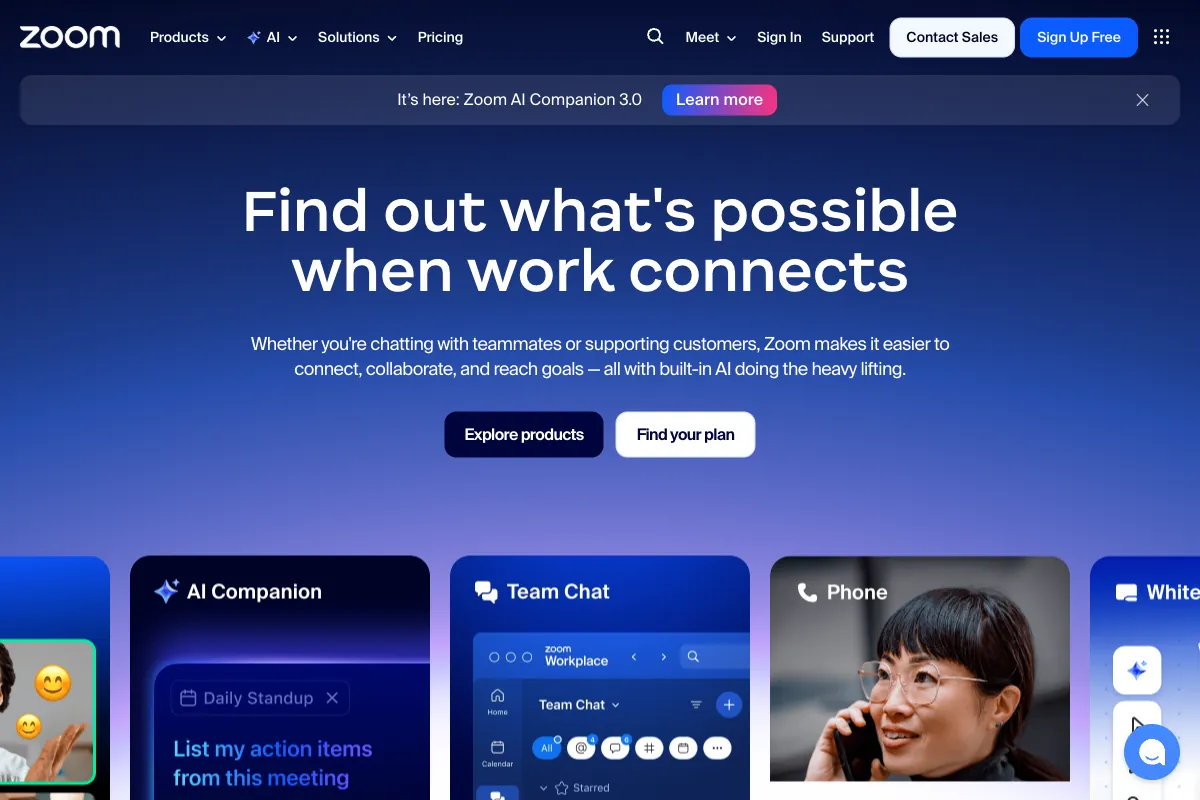
Nearly everyone with an internet connection has used Zoom at some point. It is the default video conferencing tool for businesses, educators, and remote teams worldwide. But for content creators, Zoom occupies an interesting position: it was never designed as a recording or production platform, yet millions of podcasters, coaches, and creators use it every day to capture interviews, webinars, and conversations that become the raw material for their content. With the introduction of AI Companion 3.0, Zoom Clips, and smart recording features in 2025 and 2026, Zoom has been steadily adding capabilities that make it more useful for creators who want to do more with their recordings. This review examines Zoom specifically through the lens of content creation: how it works as a recording tool, what the AI features mean for your workflow, where it falls short compared to purpose-built alternatives, and how to get the most out of your Zoom recordings in 2026.
How to Use Zoom for Content Creation
Most content creators are already familiar with Zoom for meetings, but using it effectively as a recording tool requires a slightly different approach. Here is how to set up Zoom for content production:
-
Choose Your Recording Method: Zoom offers both local recording (saved directly to your computer) and cloud recording (stored on Zoom's servers). For content creators, cloud recording is generally preferred because it unlocks AI Companion features like smart chapters, highlights, and automatic summaries. Local recording gives you a higher-quality file but without the AI processing.
-
Enable AI Companion and Smart Recording: In your Zoom settings, activate AI Companion to get automatic meeting summaries, action items, and smart chapters on your cloud recordings. Smart recording divides your content into navigable chapters with timestamps, making it far easier to locate key moments when you sit down to edit.
-
Optimize Audio and Video Settings: Enable HD video in your settings, use "Original Sound for Musicians" mode to prevent Zoom's noise suppression from compressing your audio quality, and consider using an external microphone and camera. These tweaks significantly improve recording quality for content that will be published.
-
Record Separate Audio Tracks: Zoom can record each participant's audio on a separate track when using cloud recording. This is essential for podcast production, as it allows you to adjust levels and clean up each speaker independently in post-production.
-
Use Zoom Clips for Short-Form Content: Zoom Clips is a built-in asynchronous video tool that lets you record, edit, and share short-form videos directly from the Zoom Workplace interface. You can record screen and camera, add basic edits, and share clips with a link. In February 2026, Zoom added the ability to create new clips directly from the Clips picker, as well as the option to stitch and combine multiple clips into longer videos without external applications.
-
Generate Clips from Recordings: After a cloud-recorded meeting, you can use Zoom's built-in clip generator to create short, shareable segments directly from your recording. The tool lets you choose custom segments, use smart chapters, or select AI-identified highlights as the basis for your clips.
-
Leverage AI Companion 3.0: Launched in early 2026, AI Companion 3.0 brings agentic workflows to Zoom. The "My Notes" feature allows you to take manual notes during a meeting while AI Companion simultaneously transcribes and expands on key takeaways. Personal workflows can automate follow-up tasks like sending episode summaries or scheduling social media posts based on your meeting content. AI Companion 3.0 is now available on the web with free access for licensed Zoom users, and it can pull context from connected Gmail and Outlook accounts.
Pros and Cons of Zoom
Pros
-
Universal Adoption: Zoom is the one platform virtually every potential guest already has installed. There is no friction asking someone to join a Zoom call for a podcast interview or coaching session. This alone makes it the default choice for many creators who regularly record with external guests.
-
Reliable and Stable: Zoom's core strength is that it works. Calls connect, audio stays in sync, and the platform handles variable internet conditions gracefully. For creators who have been burned by dropped recordings on less established platforms, this reliability is not a small thing.
-
AI Companion Is Genuinely Useful: The AI Companion suite, now at version 3.0, adds meaningful value for creators. Smart recording automatically generates chapters and highlights from your cloud recordings, saving considerable time when reviewing a two-hour interview for the best moments. Meeting summaries and next steps are generated automatically and can be shared or exported.
-
Zoom Clips for Async Content: Zoom Clips lets you record quick, polished video messages with screen sharing, AI-generated chapters, titles, and tags. You can even create an AI avatar to narrate content or translate clips into multiple languages. For creators who produce tutorials, updates, or course content, this is a surprisingly capable async video tool built right into the platform.
-
Separate Audio Tracks: Cloud recording can capture each participant on an individual audio track, which is a baseline requirement for serious podcast production. This feature alone elevates Zoom above many general-purpose video tools.
-
Massive Ecosystem and Integrations: Zoom integrates with nearly every tool in a creator's stack, from calendar apps and CRMs to transcription services and editing platforms. The Zoom Marketplace offers hundreds of apps that extend functionality.
-
Webinar Capabilities: For creators who monetize through live events, workshops, or paid webinars, Zoom's dedicated webinar product supports registration pages, email reminders, polls, Q&A, and post-event analytics without needing a separate platform.
Cons
-
Not Designed for Content Creation: This is the fundamental limitation. Zoom optimizes for real-time communication, which means it prioritizes connection stability over recording quality. When bandwidth fluctuates, Zoom dynamically reduces video resolution to keep the call connected. The result is recordings with inconsistent visual quality, compression artifacts, and resolution that may drop during the session.
-
40-Minute Limit on Free Plan: The Basic free plan caps group meetings at 40 minutes, which is a significant constraint for podcast recordings, interviews, or workshops that commonly run 60 to 90 minutes. This effectively forces creators into a paid plan.
-
Recording Quality Below Purpose-Built Tools: Compared to platforms like Riverside that record locally on each participant's device at up to 4K resolution and uncompressed 48kHz audio, Zoom's cloud recordings capture the compressed stream sent over the internet. The quality difference is noticeable, particularly in audio clarity and video consistency. For creators producing polished, broadcast-quality content, this gap matters.
-
Limited Editing Capabilities: Zoom's built-in clip generator handles basic trimming and segment extraction, but it is not a video editor. There is no text-based editing, no caption generation, no reframing from landscape to vertical, and no advanced audio processing. You will need external tools for virtually all post-production work.
-
Mixed Video Track Only: While Zoom separates audio tracks per participant, the video recording is a single mixed track showing the gallery or speaker view. You cannot get isolated video feeds for each participant, which limits what you can do with the footage in post-production compared to tools like Riverside that provide separate video files per guest.
-
Cloud Recording Storage Limits: Cloud recording storage varies by plan, and heavy users can burn through their allocation quickly. Additional storage comes at an extra cost, which can add up for creators recording multiple sessions per week.
-
No Native Vertical Video or Social Optimization: Zoom records in standard landscape format with no built-in tools for reframing to vertical (9:16) for TikTok, Instagram Reels, or YouTube Shorts. Creators who repurpose content for social media need external tools to handle this conversion.
Main Use Cases
Zoom's strength for content creators lies in its accessibility and reliability rather than its production features. Here are the scenarios where it makes the most sense:
-
Remote Podcast Interviews: When your guest is not technically inclined or has never heard of Riverside or StreamYard, Zoom is the safe default. Everyone knows how to join a Zoom call, and the separate audio tracks make the recordings workable for podcast production.
-
Coaching and Consulting Sessions: Coaches who record client sessions for archives, training libraries, or content repurposing benefit from Zoom's smart recording features. AI-generated summaries and chapters make it easy to review and extract key moments.
-
Webinar-Based Content: Creators who run paid or free webinars can use Zoom's native webinar product to host the event and capture the recording for repurposing into course content, YouTube videos, or promotional clips.
-
Internal Team Recordings: Content teams that hold regular brainstorming or planning meetings on Zoom can use AI Companion to capture ideas and decisions automatically, turning internal conversations into content briefs.
-
Live Workshops and Training: Educators and trainers who deliver live sessions via Zoom can use the recordings as evergreen content, with smart chapters making long recordings navigable for future viewers.
-
Quick Async Updates with Zoom Clips: Creators who need to share quick updates, tutorials, or walkthroughs with their audience or team can use Zoom Clips to record, edit, and share short-form videos without leaving the Zoom ecosystem.
Target Audience
Zoom as a content creation tool is best suited for:
- Podcasters who prioritize guest convenience over maximum recording quality and need a platform their guests already know.
- Coaches and Consultants who record client sessions and want AI-powered summaries and highlights to streamline content extraction.
- Webinar Hosts and course creators who combine live delivery with recording for on-demand access.
- Corporate Content Teams producing internal training, thought leadership interviews, and company updates.
- Educators and Trainers who teach live and repurpose recordings into learning libraries.
- Creators on a Budget who already pay for Zoom and want to maximize its recording capabilities before investing in a dedicated production platform.
Zoom is less ideal for creators who demand broadcast-quality video, need separate video tracks per participant, or want a production-first workflow with built-in editing and repurposing tools.
Main Competitors and Their Pros and Cons
Zoom competes in a space where video conferencing overlaps with content recording. Here is how it compares to the main alternatives for creators:
| Competitor | Best For | Key Advantage Over Zoom | Key Disadvantage vs Zoom |
|---|---|---|---|
| Riverside | Studio-quality recording | Records locally at 4K video and 48kHz audio per participant; separate video tracks; text-based editing | Less universal; guests need to learn a new tool; no free tier for hosts |
| Google Meet | Simple, free meetings | Deep Google Workspace integration; no download needed | Even fewer recording and AI features than Zoom; no separate audio tracks |
| Microsoft Teams | Enterprise collaboration | Tight Office 365 integration; Copilot AI features | Heavier interface; recording quality comparable to Zoom; less intuitive for external guests |
| StreamYard | Live streaming and multistreaming | Browser-based production studio; multistream to 8 destinations; AI clips with voice markers | Not a meeting tool; focused on broadcasting rather than private recording |
| Webex | Enterprise security | Strong compliance and security features; noise removal | Smaller ecosystem; fewer creator-focused features; less popular among independent creators |
For most content creators, the real decision is between Zoom and Riverside. Zoom wins on convenience, guest familiarity, and cost. Riverside wins on recording quality, separate video tracks, and built-in editing tools. The right choice depends on whether your priority is making the recording process frictionless or maximizing the production value of the final output.
Pricing
Zoom offers four main Workplace plans. All prices reflect annual billing rates as of early 2026:
| Plan | Price (Annual Billing) | Participants | Cloud Storage | Key Features for Creators |
|---|---|---|---|---|
| Basic | Free | 100 | None | 40-min group limit; local recording only; no AI Companion |
| Pro | $13.33/month | 100 | 5 GB | Cloud recording; AI Companion; separate audio tracks; Zoom Clips |
| Business | $18.33/month | 300 | 10 GB | Everything in Pro plus managed domains; company branding; Zoom Whiteboard |
| Enterprise | Custom | 1,000 | Unlimited | Everything in Business plus unlimited cloud storage; dedicated support; webinar add-ons |
For content creators, the Pro plan at $13.33 per month is the minimum viable option. It unlocks cloud recording, AI Companion features, separate audio tracks, and Zoom Clips, all of which are essential for using Zoom as a recording tool. The free Basic plan is too restrictive for serious content work due to the 40-minute limit and lack of cloud recording.
Zoom Webinars, if needed, are an additional cost starting at $66.67 per month for up to 500 attendees. Zoom Phone and Zoom Events are separate products with their own pricing tiers.
It is worth noting that Zoom's pricing is significantly lower than most purpose-built recording platforms. Riverside's Pro plan starts at $24 per month, and StreamYard's Core plan is $35.99 per month (annual). If you already have a Zoom subscription for meetings, the marginal cost of using it for content recording is essentially zero.
Turn Your Zoom Recordings into Viral Social Clips

Zoom makes it easy to record interviews, podcasts, webinars, and coaching sessions. But the real value of that content is locked inside hour-long recordings that most of your audience will never watch in full. The challenge every creator faces is the same: how do you extract the best 60-second moments from a 90-minute Zoom call and turn them into scroll-stopping social clips?
This is exactly what Viral Clips is built for. Upload your Zoom recording and the AI automatically identifies the most compelling moments, emotional peaks, quotable insights, and natural hooks that make people stop scrolling. Each clip is reframed to vertical format, polished with dynamic captions, and optimized for TikTok, Instagram Reels, YouTube Shorts, and LinkedIn.
Zoom's built-in smart recording and clip generation features are a solid starting point for finding highlights, but they are designed for meeting recaps rather than social media content. Viral Clips specializes in the specific type of content that Zoom users record most: conversations. Whether it is a podcast interview, a coaching call, a panel discussion, or a webinar Q&A, the AI understands conversational dynamics and extracts the moments that resonate on social platforms.
The workflow is simple: record on Zoom, download your file, upload to Viral Clips, and get back a batch of ready-to-post clips in minutes. Every Zoom recording you make is sitting on dozens of potential social clips. Try it with a free trial and turn your next Zoom session into a week of content.