CapCut Review 2026: Free AI Video Editor for Social Media Creators
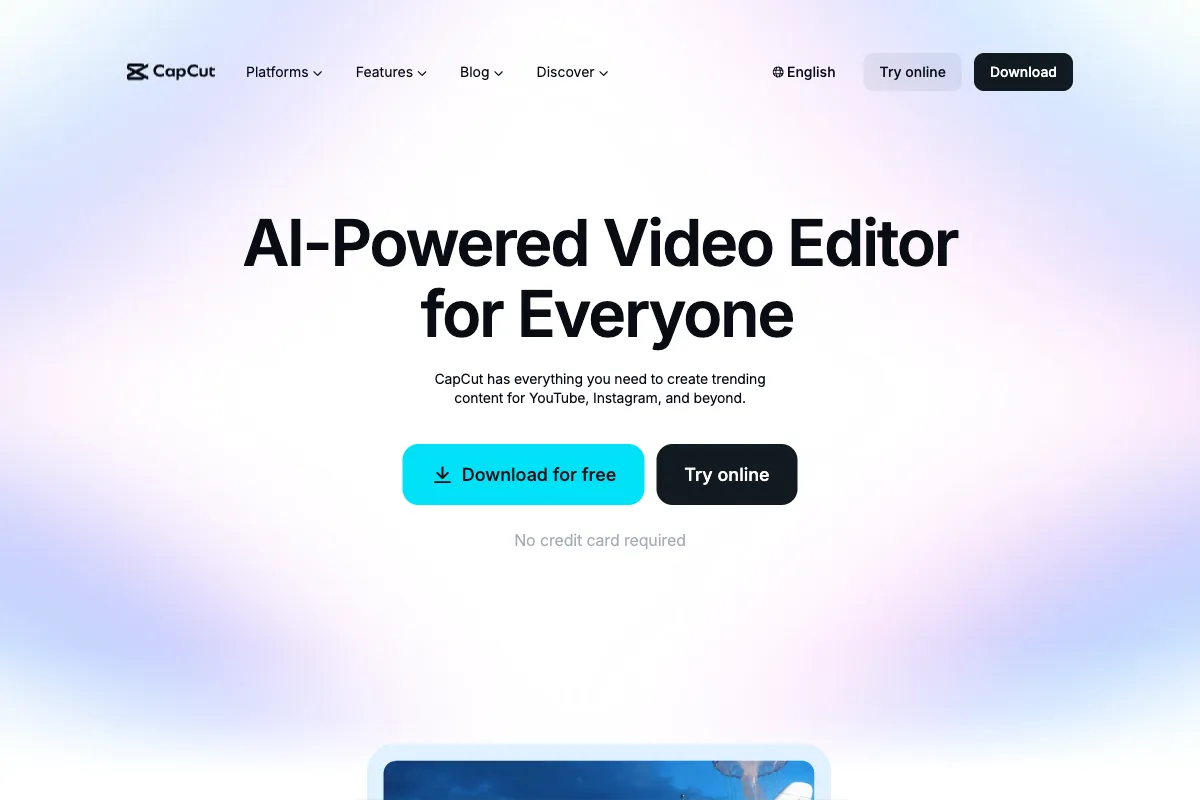
Short-form video dominates social media in 2026, and creators need editing tools that keep up with the pace. CapCut, the free video editor developed by ByteDance (the parent company of TikTok), has become one of the most popular choices for millions of creators worldwide. Originally launched in 2020 as a companion app for TikTok, CapCut has evolved into a fully featured editing platform available on mobile, desktop, and the web. With a generous free tier, a massive library of templates and effects, and an expanding suite of AI-powered tools, it has earned a reputation as the go-to editor for anyone creating content for TikTok, Instagram Reels, and YouTube Shorts. But is it the right fit for every creator? This review covers how CapCut works, its strengths and weaknesses, who it serves best, how it compares to competitors, and whether the updated 2026 pricing makes sense for your workflow.
How to Use CapCut
CapCut is designed to be accessible to beginners while offering enough depth for intermediate editors. Here is a step-by-step guide to the typical editing workflow:
-
Choose Your Platform: CapCut is available as a mobile app (iOS and Android), a desktop application (Mac and Windows), and a browser-based web editor at capcut.com. The mobile app is the most popular option, but the desktop version offers a fuller timeline editing experience with multi-track support.
-
Create a Project: Open CapCut and start a new project. Select your aspect ratio based on your target platform -- 9:16 for TikTok and Reels, 16:9 for YouTube, or 1:1 for Instagram feed posts. Import your video clips, images, and audio files from your device or cloud storage.
-
Edit on the Timeline: Drag your media onto the multi-track timeline. Use the trim, split, and cut tools to remove unwanted sections. Rearrange clips by dragging them into the desired order. The interface uses familiar drag-and-drop interactions that feel intuitive even for first-time editors.
-
Apply Effects and Transitions: Browse CapCut's extensive library of filters, effects, transitions, and stickers. The template library is one of CapCut's standout features -- thousands of pre-built templates let you drop in your footage and get a polished result in seconds. Trending templates are updated regularly to match current social media aesthetics.
-
Add Captions and Text: Use the auto-caption feature to generate subtitles automatically from your audio. CapCut supports multiple languages and offers a variety of caption styles, including animated word-by-word text that has become a signature look on social media. You can also add custom text overlays, titles, and lower thirds.
-
Leverage AI Tools: CapCut's AI feature set has expanded significantly. Key AI capabilities include text-to-speech with multiple voice options, AI background removal (chroma key without a green screen), smart reframing that adjusts your video to different aspect ratios automatically, AI-powered video enhancement and stabilization, and auto-beat sync that matches cuts to the rhythm of your background music.
-
Export and Share: Export your finished video in resolutions up to 4K (on Pro plans) or 1080p on the free tier. CapCut allows direct sharing to TikTok, Instagram, YouTube, and other platforms. Notably, the free version does not add a watermark to exports -- a significant advantage over many competitors.
The entire workflow is optimized for speed. A creator familiar with the interface can go from raw footage to a finished social media clip in under 15 minutes, which is a major reason why CapCut has gained such widespread adoption.
Pros and Cons of CapCut
Based on user reviews across the App Store (4.7/5), Google Play (4.4/5), and creator community feedback, here is a balanced assessment of CapCut's strengths and weaknesses.
Pros
-
Generous Free Tier with No Watermarks: CapCut's free plan is remarkably capable. Unlike most competitors that add watermarks or severely restrict features on free plans, CapCut lets you edit, add effects, use templates, and export in 1080p without any branding on your output. This alone makes it the best free video editor for most creators.
-
Massive Template and Effects Library: CapCut offers thousands of templates, filters, stickers, transitions, and sound effects. Templates are regularly updated to reflect trending styles on TikTok and other platforms, which is invaluable for creators who need to stay current with visual trends.
-
Seamless TikTok Integration: As a ByteDance product, CapCut has the deepest native integration with TikTok of any editor. You can import TikTok sounds, use trending templates directly, and publish to TikTok with a single tap. For TikTok-first creators, this integration is unmatched.
-
Cross-Platform Availability: Having a consistent editing experience across mobile, desktop, and web means you can start a project on your phone and finish it on your computer, or make quick edits in a browser when you do not have the app installed.
-
Intuitive Interface: CapCut strikes a good balance between simplicity and capability. New users can produce their first edited video within minutes, while more experienced editors can dig into multi-track timeline editing, keyframe animation, and speed curves.
-
Expanding AI Feature Set: Auto captions, text-to-speech, background removal, smart reframing, and AI enhancement tools add real value without requiring technical expertise. These features continue to improve with each update.
-
No Account Required for Basic Editing: On the mobile app, you can start editing immediately without creating an account, reducing friction for new users.
Cons
-
Limited for Long-Form Content: CapCut was built for short-form social media clips, and it shows when you attempt longer projects. The timeline becomes harder to manage with videos longer than 10 to 15 minutes, and performance can degrade with larger projects. Podcast editors and documentary makers will find it insufficient.
-
ByteDance Data Privacy Concerns: As a product of ByteDance, CapCut inherits the same data privacy scrutiny that TikTok faces. The app collects usage data, and in some regions, regulatory concerns about data handling and storage have led to restrictions. Creators working with sensitive content should be aware of these considerations.
-
Less Professional Than Desktop-Class Editors: While CapCut has grown significantly, it still lacks advanced features that professional editors rely on, such as multi-cam syncing, advanced color grading with scopes, professional audio mixing, and complex motion graphics. It is not a replacement for Adobe Premiere Pro or DaVinci Resolve.
-
Feature Overload for Beginners: Paradoxically, while CapCut is easy to start with, the sheer volume of effects, stickers, templates, and options can overwhelm new users. The interface can feel cluttered when you are trying to find a specific tool among hundreds of options.
-
Internet Dependency: Many of CapCut's best features -- templates, AI tools, cloud storage, and stock audio -- require an active internet connection. Offline editing is limited to basic cuts and local effects.
-
Inconsistent Performance on Older Devices: The mobile app, while well-optimized for newer phones, can be slow and crash-prone on older hardware. Complex projects with multiple effects layers are particularly demanding.
-
Customer Support Is Minimal: CapCut does not offer live chat or phone support. Help is limited to a knowledge base, community forums, and in-app feedback. Users with billing issues or technical problems report slow and sometimes unhelpful resolution processes.
Main Use Cases
CapCut is purpose-built for social media content creation, and its strengths align closely with these workflows:
-
TikTok and Reels Creation: The primary use case. Creating short, attention-grabbing videos with trending effects, music, and transitions. CapCut's template library and TikTok integration make it the fastest path from idea to published video.
-
YouTube Shorts Production: Creators repurposing content for YouTube Shorts benefit from CapCut's vertical video tools, auto-captions, and quick editing workflow.
-
Instagram Content: Stories, Reels, and feed posts all benefit from CapCut's multi-format support, with easy switching between aspect ratios and a library of Instagram-friendly templates.
-
Product Demos and E-Commerce Videos: Small businesses and e-commerce brands use CapCut to create product showcase videos, unboxing clips, and promotional content without hiring a video production team.
-
Educational and How-To Content: Creators producing tutorials, explainers, and educational shorts use CapCut's text overlays, captions, and split-screen effects to make instructional content more engaging.
-
Personal and Event Videos: Beyond professional use, millions of users rely on CapCut for personal video editing -- travel montages, event recaps, and family highlights with polished transitions and music.
-
Social Media Marketing: Marketing teams and social media managers use CapCut to produce high volumes of branded content quickly, leveraging templates and brand kits to maintain visual consistency.
Target Audience
CapCut is best suited for:
- TikTok and Short-Form Creators: The core audience. Anyone producing regular content for TikTok, Instagram Reels, or YouTube Shorts will find CapCut's tools directly aligned with their needs.
- Beginner Video Editors: People with little to no editing experience who want to create polished videos without a steep learning curve.
- Social Media Managers: Teams managing content calendars who need a fast, template-driven editing workflow.
- Small Business Owners: Entrepreneurs and small brands producing their own marketing videos on a budget.
- Students and Young Creators: CapCut's free pricing and mobile-first design make it especially popular with students and Gen Z creators.
- Content Creators on a Budget: Anyone who needs professional-looking results without paying for expensive editing software.
CapCut is less ideal for professional filmmakers, podcast producers, long-form YouTube editors, or anyone requiring advanced color grading, complex audio mixing, or multi-cam workflows.
Main Competitors and Their Pros and Cons
The social media video editing space is crowded. Here is how CapCut compares to its main competitors in 2026:
| Competitor | Key Strength | Pricing | Best For | Notable Limitation |
|---|---|---|---|---|
| Adobe Premiere Rush | Adobe ecosystem integration | Free / $9.99/mo | Creators in the Adobe workflow | Limited features compared to Premiere Pro; smaller template library |
| InShot | Lightweight mobile-first editing | Free / $3.99/mo | Quick mobile edits and collages | Very limited on desktop; fewer AI features |
| Filmora | Balance of simplicity and power | $13.99/mo or $49.99/yr | Intermediate editors wanting more control | Watermark on free tier; subscription cost adds up |
| iMovie | Free and polished for Apple users | Free | Mac and iPhone users needing basic editing | Apple-only; limited effects and templates; no AI tools |
| DaVinci Resolve | Professional-grade editing and color grading | Free / $295 one-time | Professional editors and colorists | Steep learning curve; heavy system requirements |
| Canva Video | Design-first approach with templates | Free / $13/mo (Pro) | Brand-focused visual content | Limited timeline editing; not built for traditional video workflows |
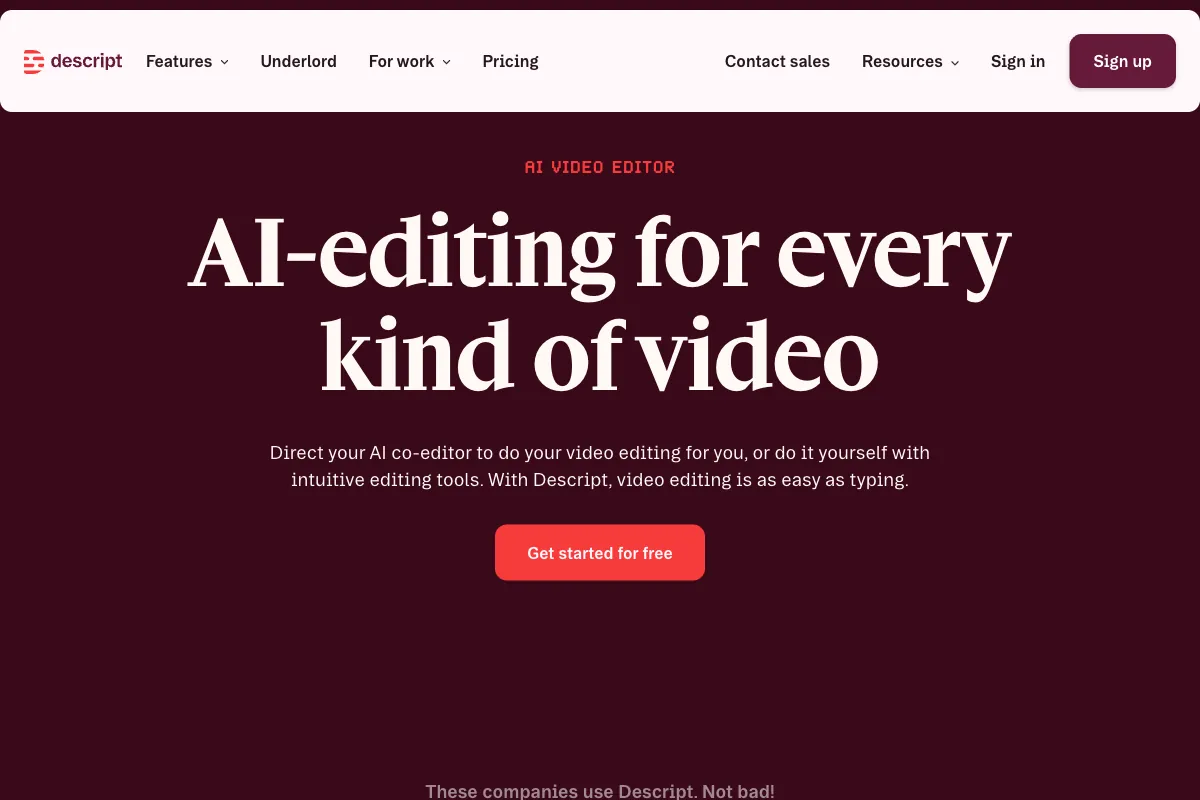
| Descript | Text-based editing with AI transcription | $24/mo | Podcasters and dialogue-heavy content | Desktop-focused; less suited for short-form social |
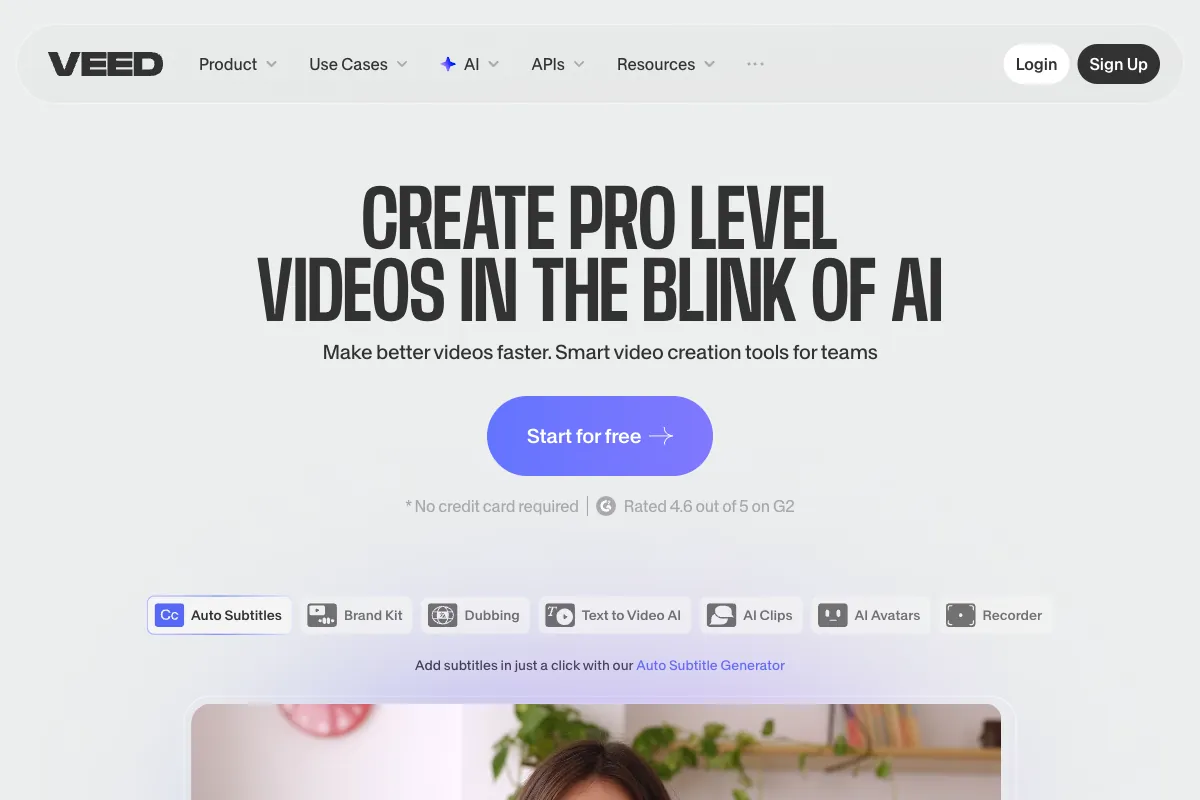
| VEED.io | Browser-based with strong subtitle tools | Free / $18/mo (Pro) | Quick online edits and team collaboration | Can be slow with larger files; expensive at higher tiers |
CapCut's primary competitive advantage is the combination of a genuinely powerful free tier, deep TikTok integration, and a massive template library. Adobe Premiere Rush offers ecosystem benefits for Adobe users but lacks CapCut's template variety. InShot is lighter but more limited. DaVinci Resolve is far more powerful but is overkill for social media clips and has a significant learning curve. For pure short-form social content, CapCut remains the strongest overall value proposition.
Pricing
CapCut restructured its subscription plans in 2025, and the current pricing as of early 2026 reflects a shift toward a tiered model with Standard and Pro paid options alongside the free plan:
| Plan | Monthly Price | Annual Price | Key Features |
|---|---|---|---|
| Free | $0 | $0 | Full basic editing tools, multi-track timeline, effects and filters, auto captions (limited), music and sound effects library, 1080p export, no watermark |
| Standard | $9.99/mo | Monthly only | Watermark-free exports, access to additional premium templates and effects, mobile-focused features |
| Pro | $19.99/mo | $179.99/yr (~$15/mo) | Full AI feature access, 4K HDR export, up to 1TB cloud storage, priority processing, advanced auto captions, all premium templates and effects, desktop + mobile + web |
| Team | ~$24.99/mo per seat | Custom | Everything in Pro plus collaborative editing, shared workspaces, team project management, priority support |
It is worth noting that CapCut's pricing underwent a significant increase in mid-2025, with the Pro plan jumping from $9.99/month to $19.99/month -- nearly doubling overnight. This change drew criticism from long-time users who had relied on the lower price point. Annual subscribers on the old plan may face a renewal adjustment to the new $179.99/year rate.
Despite the price increase, CapCut's free tier remains one of the most generous in the industry. The vast majority of features -- including basic editing, effects, templates, and 1080p export without watermarks -- are available at no cost. The paid tiers primarily add 4K export, expanded cloud storage, full AI feature access, and the complete premium template library.
For the latest pricing and plan details, visit the CapCut pricing page.
Turn Your Long-Form Content into Viral Clips Automatically

CapCut is an excellent choice for editing and polishing individual short-form videos for social media. But if you are a podcaster, coach, or consultant producing long-form content -- interviews, coaching sessions, webinars, or full podcast episodes -- there is a critical step that comes before editing: finding the moments worth clipping in the first place. Scrubbing through a two-hour recording to identify the best 30-second segments is tedious and time-consuming, even with a tool as fast as CapCut.
This is where Viral Clips fits into your workflow. Viral Clips uses AI to analyze your full-length recordings and automatically extract the most engaging, shareable moments -- the hooks, emotional peaks, insightful takeaways, and quotable segments that perform best on social media. Upload a podcast episode or coaching call, and within minutes you get a batch of ready-to-post clips, reframed to vertical format with captions included.
The ideal workflow for content creators combines both tools: use Viral Clips to identify and extract the best moments from your long-form content, then bring those clips into CapCut to apply your preferred effects, templates, and finishing touches. Together, they cover the full pipeline from raw recording to polished, platform-ready short-form content.
Key advantages of pairing Viral Clips with CapCut:
- AI-powered moment detection finds the clips that are most likely to perform, saving you hours of manual scrubbing.
- Supports videos from 5 minutes to 4 hours, making it ideal for podcasts, webinars, interviews, and coaching calls.
- Editor-agnostic output means you can take extracted clips into CapCut or any other editor for final polish.
- Automated vertical reframing and captions deliver clips that are ready to post immediately or fine-tune further in CapCut.
Stop spending hours hunting for the best moments in your recordings. Let Viral Clips find them for you, then use CapCut to make them shine. Try it at viralclips.video.